This is a simple browser-based utility that adds padding around Joint Photographic Experts Group (JPG/JPEG) pictures. As soon as you paste a JPG/JPEG picture in the input area, the utility will add a solid-color padding around it. In the options, you can enable padding on specific sides, set the padding width, and choose the fill color. Created by mad scientists from team Browserling.
This is a simple browser-based utility that adds padding around Joint Photographic Experts Group (JPG/JPEG) pictures. As soon as you paste a JPG/JPEG picture in the input area, the utility will add a solid-color padding around it. In the options, you can enable padding on specific sides, set the padding width, and choose the fill color. Created by mad scientists from team Browserling.
This online tool adds padding to any JPG/JPEG image. Padding is useful when you want to create a frame-like effect, prepare a picture for printing, or ensure specific aspect ratios without cropping the original content. Since JPEG does not support transparency, the padding is always filled with a solid color of your choice (for example, white, black, or light blue). The color can be set in the options using a code or name, or selected directly from the palette. You can also set the padding thickness by specifying its width in pixels. You can control which sides receive padding by enabling the checkboxes for left, right, top, or bottom. This allows you to create symmetrical padding on all sides or extend the canvas only in a specific direction. For example, you can add extra area only at the top and bottom of a JPG to create a portrait orientation, or expand the left side to align the picture within a document layout. If you later need to remove this extra area, you can use the companion tool Remove a Padding from a JPG. Jpgabulous!
This online tool adds padding to any JPG/JPEG image. Padding is useful when you want to create a frame-like effect, prepare a picture for printing, or ensure specific aspect ratios without cropping the original content. Since JPEG does not support transparency, the padding is always filled with a solid color of your choice (for example, white, black, or light blue). The color can be set in the options using a code or name, or selected directly from the palette. You can also set the padding thickness by specifying its width in pixels. You can control which sides receive padding by enabling the checkboxes for left, right, top, or bottom. This allows you to create symmetrical padding on all sides or extend the canvas only in a specific direction. For example, you can add extra area only at the top and bottom of a JPG to create a portrait orientation, or expand the left side to align the picture within a document layout. If you later need to remove this extra area, you can use the companion tool Remove a Padding from a JPG. Jpgabulous!
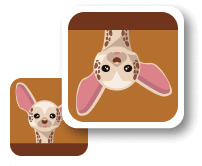
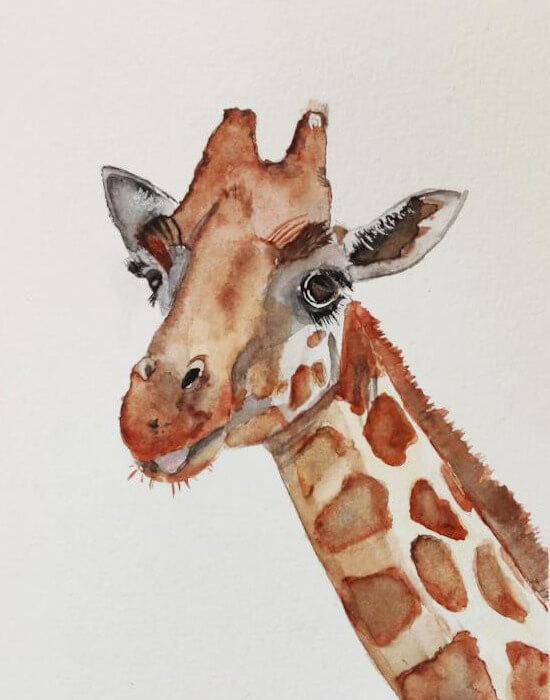
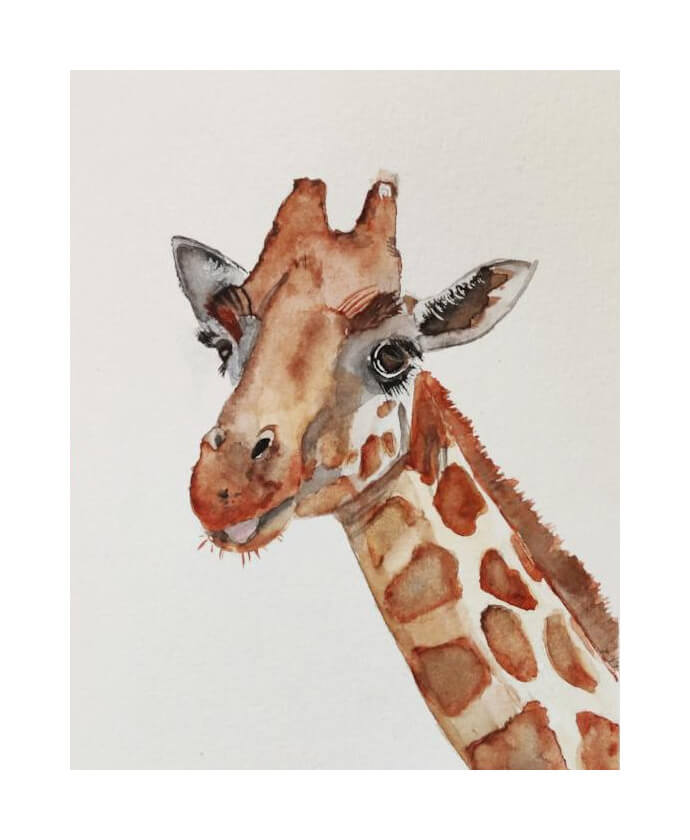
In this example, we load a JPG of a watercolor-painted giraffe. Before printing the picture for wall decoration, we add a white border around the entire JPEG so it looks like a clean frame after printing. We enable padding on all four sides and set the padding width to 70 pixels. (Source: Pexels.)
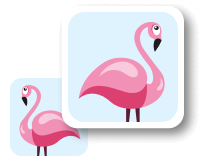
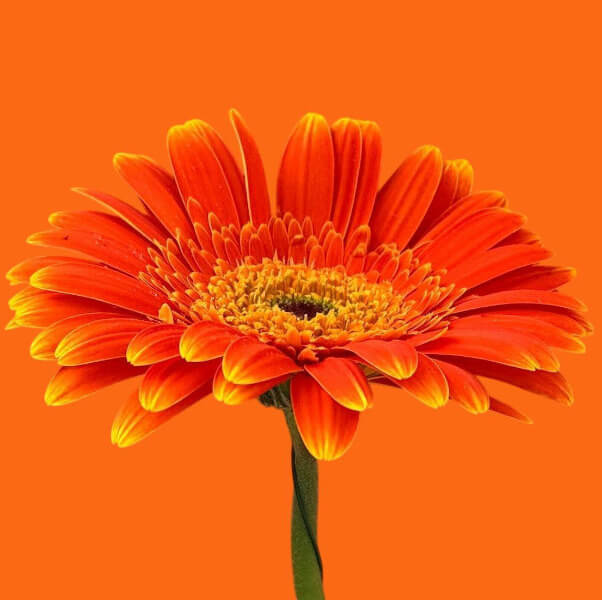
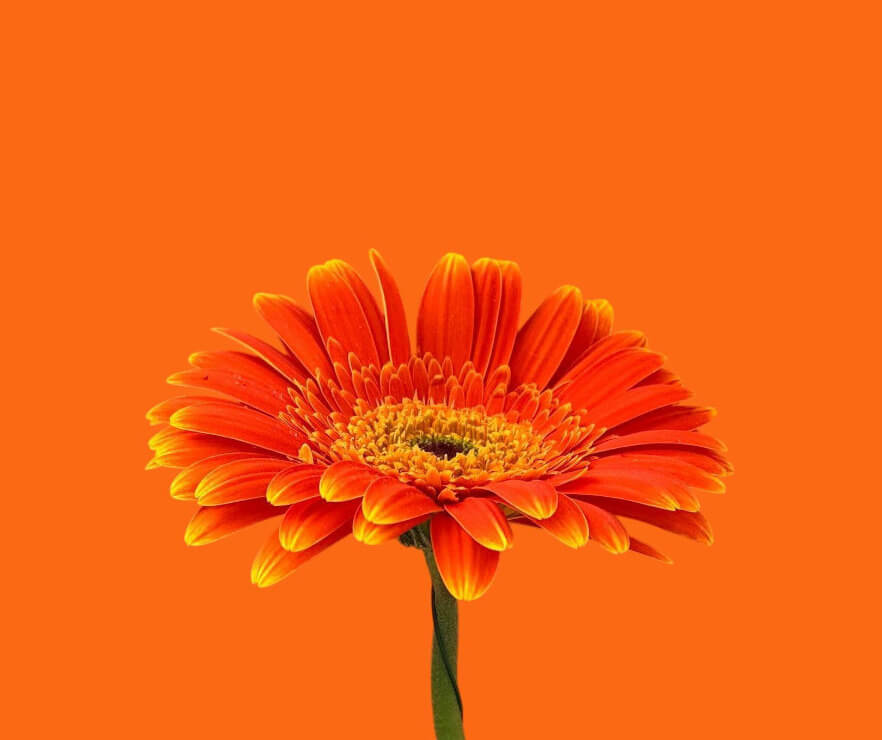
IIn this example, we add padding to a JPG photo of an orange gerbera daisy. The petals almost touch the edges, so we extend the canvas by 140 pixels on the left, top, and right sides. The padding color matches the original orange background, making the JPG look more spacious and balanced. (Source: Pexels.)
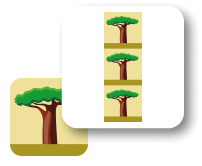
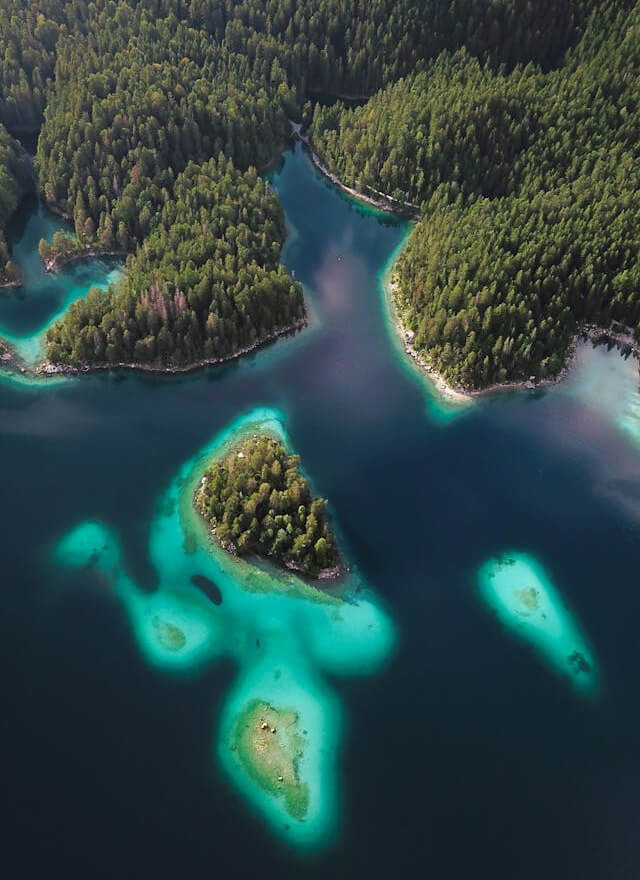
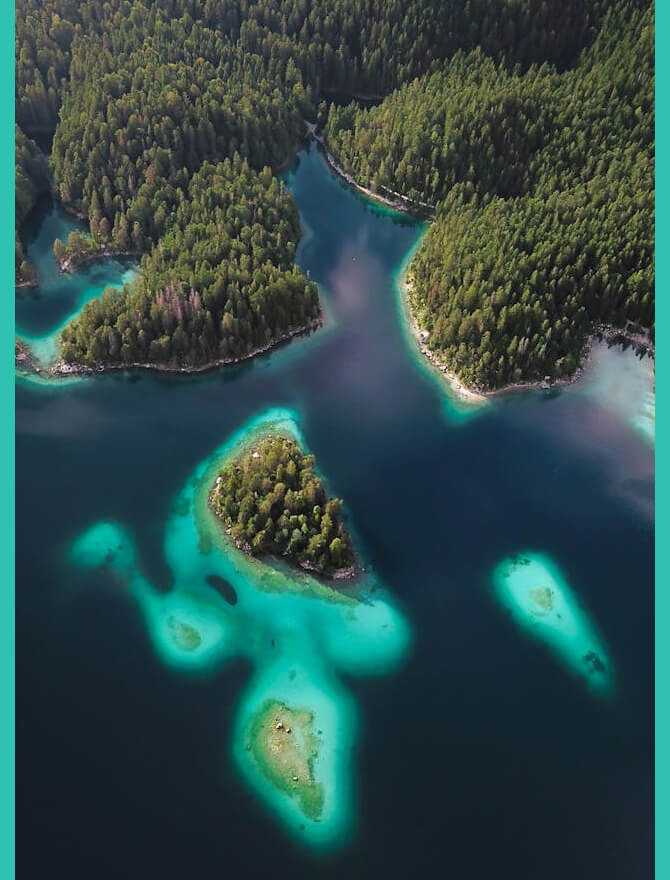
In this example, we place decorative padding on the left and right sides of an aerial JPG photo of tropical islands. The padding uses a cyan color that matches the water tone in the picture. Besides its decorative effect, this extra padding also helps prevent photos from overlapping too closely when they appear next to other pictures in a website gallery. (Source: Pexels.)
Edit JPG pictures in your browser.
Shift a JPEG to the right or left.
Extract a part of a JPEG picture.
Split a JPG into multiple smaller JPEGs.
Join multiple JPEGs together to create a single image.
Convert a JPEG picture to a smaller preview thumbnail.
Convert a baseline JPEG to an interlaced JPEG.
Convert an interlaced JPG to a baseline JPG.
Create a PDF document from one or more JPG pictures.
Extract PDF pages as JPG pictures.
Create an EPS file from a JPG picture.
Create a JPG picture from an EPS file.
Convert JPEG photos to JPG 2000 photos.
Convert JPEG 2000 images to JPG images.
Convert JPEG images to ICO icons.
Convert ICO icons to JPG images.
Convert JPEG images to TIFF images.
Convert TIFF images to JPG images.
Convert JPG pictures to QOI (Quote OK Image Format) pictures.
Convert QUI pictures to JPG pictures.
Convert JPEG images to PIK images.
Convert a PIK image to a JPG image.
Convert a JPEG image to a PPM image.
Convert a PPM image to a JPG image.
Convert a JPEG image to a BPG image.
Convert a BPG image to a JPG image.
Convert a JPEG image to raw RGB values.
Convert raw RGB values to a JPG image.
Convert a JPG image to raw RGBA values.
Convert raw RGBA values to a JPEG image.
Convert a JPG image to raw ARGB values.
Convert raw ARGB values to a JPEG image.
Convert a JPEG image to raw BGR values.
Convert raw BGR values to a JPG image.
Convert a JPEG image to raw BGRA values.
Convert raw BGRA values to a JPG image.
Convert a JPEG image to raw ABGR values.
Convert raw ABGR values to a JPG image.
Convert a JPEG image to a FLIF image.
Convert a FLIF image to a JPG image.
Convert a JPEG image to an AVIF (AV1) image.
Convert an AVIF (AV1) image to a JPG image.
Convert multiple JPGs to a GIF animation.
Convert multiple JPGs to an APNG animation.
Convert multiple JPGs to a Webp animation.
Create an Excel spreadsheet with colored cells from a JPEG.
Combine two JPG/JPEG pictures together.
Load a JPG slowly pixel-line by pixel-line.
Generate a one-color JPEG of any size.
Randomize bytes in a JPEG and create a glitched JPEG.
Increase the quality of a JPEG picture.
Apply the watercolor effect on a JPG photo.
Convert a JPG to an ASCII art image.
Convert an ASCII drawing into a JPEG drawing.
Convert a JPEG to an ANSI art image.
Convert an ANSI drawing to a JPEG drawing.
Change the filename of a JPG.
Create a mirror copy of a JPG image.
Create convert the given JPG into a symmetric JPG.
Apply a color quantization algorithm on a JPG picture.
Add sound to a JPG picture.
Try to recover a JPG that has been damaged.
Show the hidden metadata (EXIF info) in a JPEG picture.
Add hidden metadata (EXIF info) to a JPEG picture.
Remove the hidden metadata (EXIF info) from a JPEG picture.
Insert a hidden comment in a JPG picture (as EXIF entry).
Find positions of certain pixels in a JPEG.
Replace certain pixels in a JPEG.
Delete certain pixels in a JPEG.
Swap every two pixels in a JPEG row-wise or column-wise.
Swap pixel blocks of any size in JPEG rows or columns.
Add errors to a JPEG and produce a modified picture.
Find differences between two JPG pictures.
View JPEG pictures in your browser.
Subscribe to our updates. We'll let you know when we release new tools and features, and when we organize online workshops.
Enter your email here
We're Browserling — a friendly and fun cross-browser testing company powered by alien technology. At Browserling we love to make people's lives easier, so we created this collection of online JPG tools. Our tools have the simplest possible user interface that is focused on getting things done. People love our tools and they are now used by millions of people every month. Our JPG tools are actually powered by our web developer tools that we created over the last couple of years. Check them out!