This is a simple browser-based utility that removes margins from Joint Photographic Experts Group (JPG/JPEG) pictures. As soon as you paste a JPG/JPEG picture in the input area, the utility will remove the specified margin width from it. In the options, you can precisely specify the number of pixels to delete from each side or use the interactive preview to adjust the crop area. Created by mad scientists from team Browserling.
This is a simple browser-based utility that removes margins from Joint Photographic Experts Group (JPG/JPEG) pictures. As soon as you paste a JPG/JPEG picture in the input area, the utility will remove the specified margin width from it. In the options, you can precisely specify the number of pixels to delete from each side or use the interactive preview to adjust the crop area. Created by mad scientists from team Browserling.

This online tool deletes margins from a JPEG (JPG) image. It removes unwanted margins such as blank space, colorful borders, or wide padding. This reduces image dimensions, making JPG photos, scans, or graphics cleaner for design, publishing, and presentations. After loading a JPEG, you can define how many pixels of margin should be deleted from each side of the picture: left, right, top, and bottom. Each side can have a different margin width — for example, 20 pixels on the left, 0 pixels on the right, and 50 pixels on both the top and bottom. You can also use your mouse to manually drag the handles in the preview area to visually define the margin deletion zone. The tool also includes an option to repeatedly delete margins. When this option is enabled, a "Delete the Margin Again" button becomes available. This button takes the output JPEG (after the first margin deletion) and places it back into the input area. This makes it easy to refine the margin removal step by step. If you need to add space around a JPEG instead, try the Add a Margin to a JPG tool. Jpgabulous!
This online tool deletes margins from a JPEG (JPG) image. It removes unwanted margins such as blank space, colorful borders, or wide padding. This reduces image dimensions, making JPG photos, scans, or graphics cleaner for design, publishing, and presentations. After loading a JPEG, you can define how many pixels of margin should be deleted from each side of the picture: left, right, top, and bottom. Each side can have a different margin width — for example, 20 pixels on the left, 0 pixels on the right, and 50 pixels on both the top and bottom. You can also use your mouse to manually drag the handles in the preview area to visually define the margin deletion zone. The tool also includes an option to repeatedly delete margins. When this option is enabled, a "Delete the Margin Again" button becomes available. This button takes the output JPEG (after the first margin deletion) and places it back into the input area. This makes it easy to refine the margin removal step by step. If you need to add space around a JPEG instead, try the Add a Margin to a JPG tool. Jpgabulous!
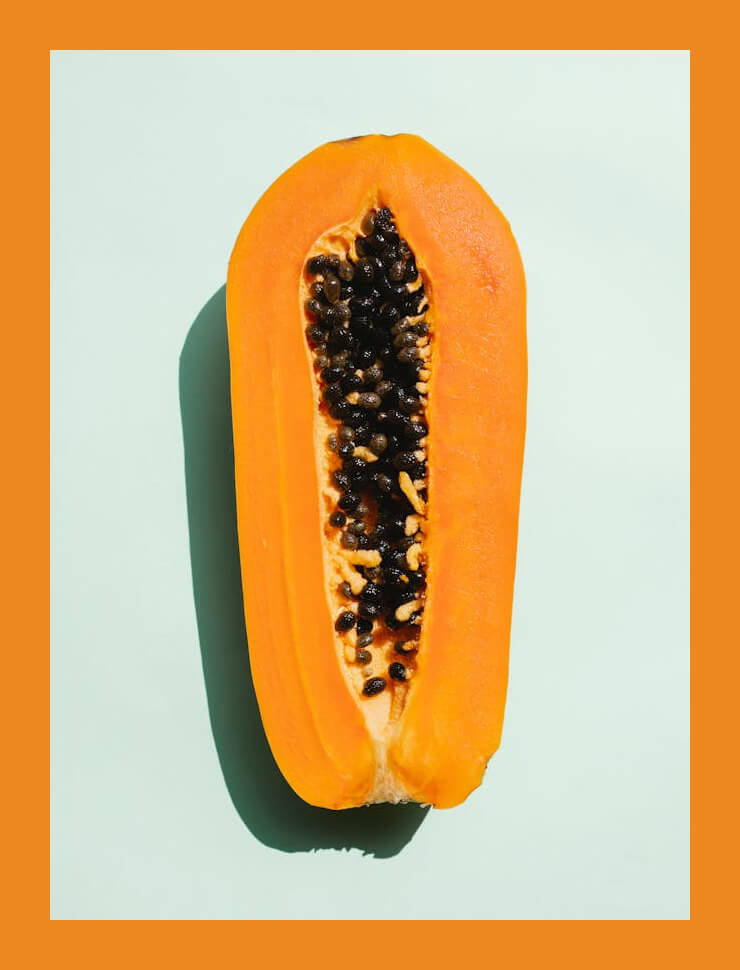
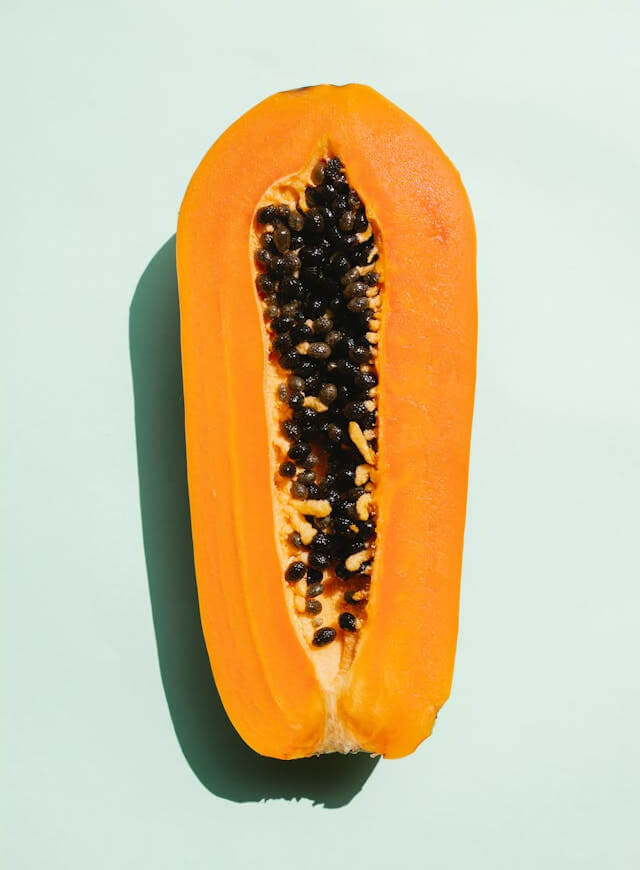
In this example, we delete a uniform orange margin that was added around a papaya JPEG photo. The margin width is set to 50 pixels on all four sides, resulting in a clean image of the papaya on a blue background, with no surrounding frame. (Source: Pexels.)
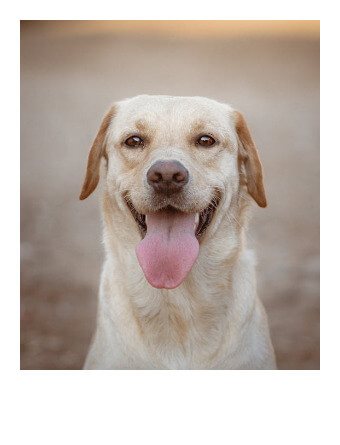
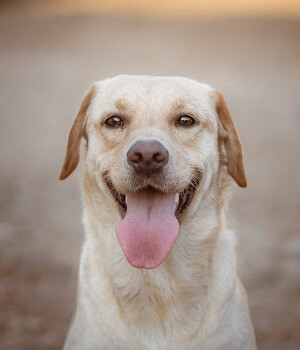
This example deletes a recognizable Polaroid-style frame around a Labrador retriever portrait. Polaroid photos usually have a thicker bottom margin for captions, so we remove different margin widths on each side. The tool deletes 20 pixels from the left, right, and top edges, and 75 pixels from the bottom edge. (Source: Pexels.)
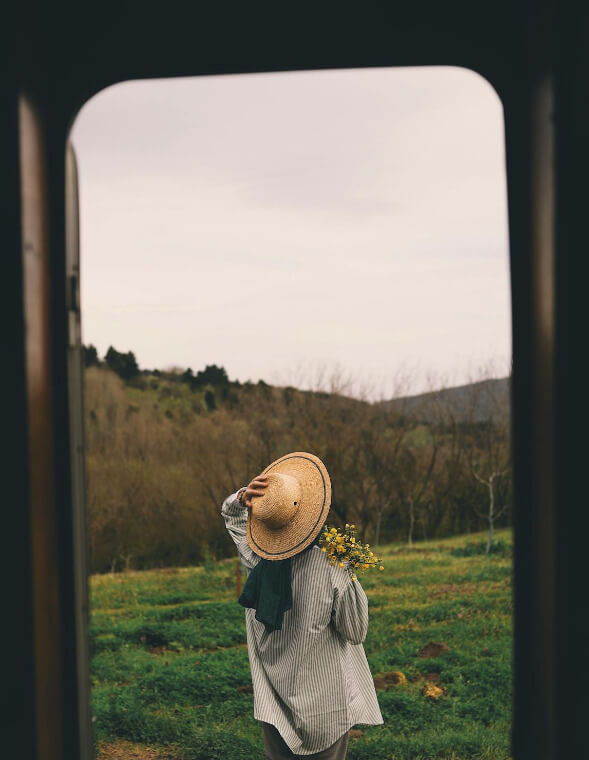
In this example, we remove a dark margin that frames the subject in the JPG photo. The margin appears only on three sides, so we delete it from the left, right, and top edges, leaving the bottom edge unchanged. We adjust the margin width visually in the preview, resulting in a focused portrait of the woman in the hat. (Source: Pexels.)

Edit JPG pictures in your browser.
Shift a JPEG to the right or left.
Extract a part of a JPEG picture.
Split a JPG into multiple smaller JPEGs.
Join multiple JPEGs together to create a single image.
Convert a JPEG picture to a smaller preview thumbnail.
Convert a baseline JPEG to an interlaced JPEG.
Convert an interlaced JPG to a baseline JPG.
Create a PDF document from one or more JPG pictures.
Extract PDF pages as JPG pictures.
Create an EPS file from a JPG picture.
Create a JPG picture from an EPS file.
Convert JPEG photos to JPG 2000 photos.
Convert JPEG 2000 images to JPG images.
Convert JPEG images to ICO icons.
Convert ICO icons to JPG images.
Convert JPEG images to TIFF images.
Convert TIFF images to JPG images.
Convert JPG pictures to QOI (Quote OK Image Format) pictures.
Convert QUI pictures to JPG pictures.
Convert JPEG images to PIK images.
Convert a PIK image to a JPG image.
Convert a JPEG image to a PPM image.
Convert a PPM image to a JPG image.
Convert a JPEG image to a BPG image.
Convert a BPG image to a JPG image.
Convert a JPEG image to raw RGB values.
Convert raw RGB values to a JPG image.
Convert a JPG image to raw RGBA values.
Convert raw RGBA values to a JPEG image.
Convert a JPG image to raw ARGB values.
Convert raw ARGB values to a JPEG image.
Convert a JPEG image to raw BGR values.
Convert raw BGR values to a JPG image.
Convert a JPEG image to raw BGRA values.
Convert raw BGRA values to a JPG image.
Convert a JPEG image to raw ABGR values.
Convert raw ABGR values to a JPG image.
Convert a JPEG image to a FLIF image.
Convert a FLIF image to a JPG image.
Convert a JPEG image to an AVIF (AV1) image.
Convert an AVIF (AV1) image to a JPG image.
Convert multiple JPGs to a GIF animation.
Convert multiple JPGs to an APNG animation.
Convert multiple JPGs to a Webp animation.
Create an Excel spreadsheet with colored cells from a JPEG.
Combine two JPG/JPEG pictures together.
Load a JPG slowly pixel-line by pixel-line.
Generate a one-color JPEG of any size.
Randomize bytes in a JPEG and create a glitched JPEG.
Increase the quality of a JPEG picture.
Apply the watercolor effect on a JPG photo.
Convert a JPG to an ASCII art image.
Convert an ASCII drawing into a JPEG drawing.
Convert a JPEG to an ANSI art image.
Convert an ANSI drawing to a JPEG drawing.
Change the filename of a JPG.
Create a mirror copy of a JPG image.
Create convert the given JPG into a symmetric JPG.
Apply a color quantization algorithm on a JPG picture.
Add sound to a JPG picture.
Try to recover a JPG that has been damaged.
Show the hidden metadata (EXIF info) in a JPEG picture.
Add hidden metadata (EXIF info) to a JPEG picture.
Remove the hidden metadata (EXIF info) from a JPEG picture.
Insert a hidden comment in a JPG picture (as EXIF entry).
Find positions of certain pixels in a JPEG.
Replace certain pixels in a JPEG.
Delete certain pixels in a JPEG.
Swap every two pixels in a JPEG row-wise or column-wise.
Swap pixel blocks of any size in JPEG rows or columns.
Add errors to a JPEG and produce a modified picture.
Find differences between two JPG pictures.
View JPEG pictures in your browser.
Subscribe to our updates. We'll let you know when we release new tools and features, and when we organize online workshops.
Enter your email here
We're Browserling — a friendly and fun cross-browser testing company powered by alien technology. At Browserling we love to make people's lives easier, so we created this collection of online JPG tools. Our tools have the simplest possible user interface that is focused on getting things done. People love our tools and they are now used by millions of people every month. Our JPG tools are actually powered by our web developer tools that we created over the last couple of years. Check them out!